Guide
How to add a 3D product configurator to Shopify
Paste one iframe tag into a Shopify page or product template, and add your store domain to the link's allowed domains in the imagine.io dashboard. The configurator loads inside the page with its own customisation options and live price, or with the panel hidden and your own buttons driving it. No app and no theme code needed; the cart hand-off is a short script that posts the engine's quote to Shopify's cart.
The embed code
One element. The configurator boots, loads its catalog and renders itself, with its customisation options and live price. Replace lk_YOUR_LINK with your sharing link.
<iframe
  id="configurator"
  title="Product configurator"
  src="https://configurator.imagine.io/lk_YOUR_LINK"
  style="width:100%; height:640px; border:0; display:block"
  allow="xr-spatial-tracking; fullscreen; clipboard-write"
  referrerpolicy="strict-origin-when-cross-origin"
loading="lazy"></iframe>Step by step
Create the sharing link and allow your domain
In the imagine.io dashboard open Scenes › Configurable Systems, pick the system, and on its Sharing Links tab create a link. Give it a name for where it will live, choose a theme or leave the default, and under Allowed domains add every domain the page will be served from. Leave the list empty while you test locally, and fill it in before you go live: a link embedded on a domain that is not listed shows a “not authorized” card instead of the configurator.
Copy embed code on the row gives you the iframe below with the link filled in.
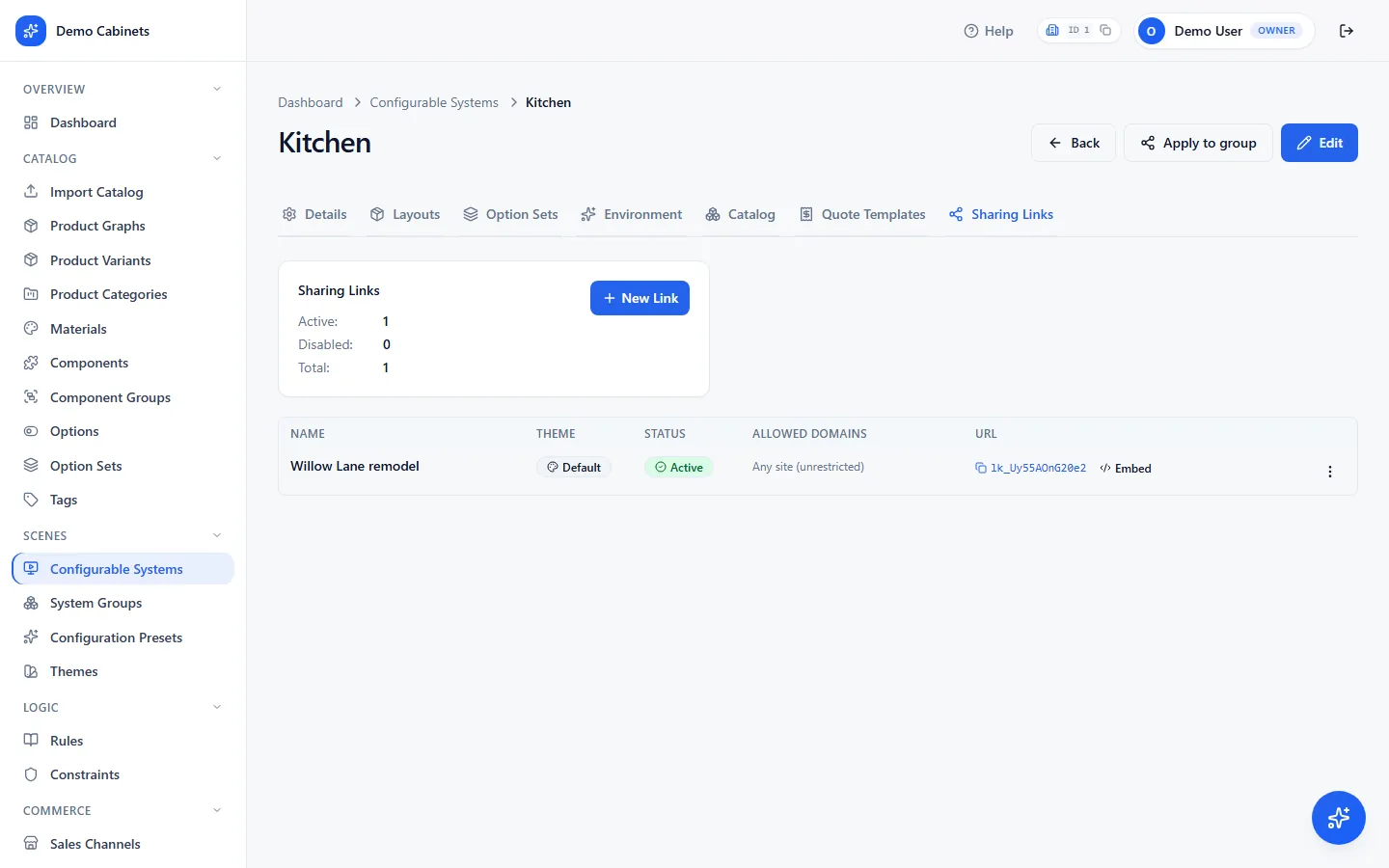
Scenes › Configurable Systems › Sharing Links. One link per place you use it; the allowed domains are set here. Open the theme editor
In Shopify admin go to Online Store › Themes and press Customize on the live theme. Open the template where the configurator should live: the product template for one product, or a page template for a dedicated “Design your sofa” page.
Add a Custom Liquid section and paste the iframe
Press Add section (or Add block inside the product information section) and choose Custom Liquid. Paste the iframe from above with your link in
src. Save. The configurator appears in the preview straight away if your preview domain is in the allowed list. Shopify's own themes include the Custom Liquid section; a third-party theme may name it differently or put custom HTML elsewhere, in which case the theme's documentation says where. Shopify's guide to the editor: Customizing themes.Size it for the page
The iframe takes the width of its section. Give it a height that fits your layout,
640pxon desktop is a good start, and for a full-page experience useheight: 80vh. On phones the configurator lays itself out for the narrow width.Decide who owns the customisation options
Keep the configurator's panel, or hide it with
?hide=sidebaron the link and drive the scene from your own swatches through the postMessage bridge. The 3D view stays.https://configurator.imagine.io/lk_YOUR_LINK?hide=sidebarWith the panel hidden, your page sends the choices in. Wait for the frame to say it is ready, read the option sets to build your own swatches from, then select by name or by id. The ten-line
callConfiguratorhelper is the one from the cart section below.const iframe = document.getElementById('configurator'); window.addEventListener('message', (e) => { if (e.data?.type === 'configurator:ready') start(); // the frame is listening }); async function start() { // Every option set and option, to build your own swatches from const sets = await callConfigurator(iframe, 'getOptionSets'); // Your swatch -> the configurator. By name, or by id when your CMS stores ids await callConfigurator(iframe, 'selectOption', { optionSet: 'Fabric', option: 'Cognac' }); await callConfigurator(iframe, 'selectOption', { optionSetId: 41, optionId: 118 }); // Hide or show parts of the configurator's interface after boot await callConfigurator(iframe, 'hideUI', { regions: ['sidebar'] }); }What you can pass and what comes back: the URL parameters (
hide,gui,theme,project,config), the full protocol, every command with its payload and its real reply (select options, read the quote and the state, camera, interface regions, undo and redo), the events the frame sends out, and the helper. One thing to know: a command the frame accepts can still be refused by a rule a moment later, which arrives as anevaluate.rejectedevent, so roll a cart line back on that event, not on the command's reply.Add the domains you forgot
Shopify serves your store on
your-store.myshopify.comand on your custom domain. Add both to the link's allowed domains, plus any preview domain you test on. The check reads the referrer, so keep the iframe'sreferrerpolicyatstrict-origin-when-cross-originor looser.Test on the real store
Open the product page on the live domain, change a few options and watch the price. Then wire the cart below.
Hand the configuration to your cart
Three calls turn what the shopper built into a cart line: the itemised quote, a picture of it, and a snapshot that can reopen the exact build later. Add a button next to the iframe, write the ten-line helper once, then post the quote to Shopify's cart on the shop's own domain, which keeps per-line properties.
<button id="add-to-cart" disabled>Add to cart</button>// Ten lines you write once: posts a command into the iframe and resolves with its reply.
function callConfigurator(iframe, action, payload) {
return new Promise((resolve, reject) => {
const requestId = 'req-' + Math.random().toString(36).slice(2);
const onReply = (e) => {
const m = e.data;
if (m?.type !== 'configurator:response' || m.requestId !== requestId) return;
window.removeEventListener('message', onReply);
m.success ? resolve(m.data) : reject(new Error(m.error));
};
window.addEventListener('message', onReply);
iframe.contentWindow.postMessage({ action, payload, requestId }, '*');
});
}const iframe = document.getElementById('configurator');
const add = document.getElementById('add-to-cart');
window.addEventListener('message', (e) => {
const m = e.data;
if (m?.type === 'configurator:ready') add.disabled = false;
// The price follows every change the shopper makes. No polling.
if (m?.type === 'configurator:event' && m.event === 'price.changed') {
add.textContent = `Add to cart: ${m.data.currency} ${m.data.grandTotal}`;
}
});
add.onclick = async () => {
const quote = await callConfigurator(iframe, 'getQuote'); // itemised, priced by the engine
const { dataUrl } = await callConfigurator(iframe, 'getScreenshot'); // thumbnail for the cart
const snapshot = await callConfigurator(iframe, 'getConfiguration'); // reopen the exact build later
await fetch('/cart/add.js', {
method: 'POST',
headers: { 'Content-Type': 'application/json' },
body: JSON.stringify({
items: [{
id: SHOPIFY_VARIANT_ID, // the Shopify variant that carries the configured product
quantity: 1,
properties: { // what the merchant needs to fulfil the order
Configuration: quote.system.name,
Price: `${quote.currency} ${quote.totals.grandTotal}`,
Lines: quote.lines.map((l) => l.name).join(', '),
_snapshot: JSON.stringify(snapshot),
_image: dataUrl,
},
}],
}),
});
};The mapping from a configurator line to a Shopify variant is yours: the engine prices the configuration, Shopify charges the variant. Most stores use one “configured product” variant per product line and carry the engine's price and lines as properties, or create a draft order from the quote on the server. Properties do not survive a cart permalink, so use /cart/add.js or the Storefront API when you need them. The e-commerce walkthrough in the SDK docs shows the same hand-off with the SDK mounted on the store page.
Frequently asked questions
Do I need a Shopify app?
No. A sharing link is embedded with one iframe in a Custom Liquid section, and the cart hand-off is a short script on the page. Nothing is installed in your store and no theme code is edited.
Will the configurator slow down my product page?
The iframe loads lazily and the 3D runs inside it, isolated from your theme's scripts. Your page's own weight does not change; the configurator's assets load only when the frame is on screen.
My site has a Content-Security-Policy. What does it need?
Allow the configurator origin in frame-src, for example frame-src https://configurator.imagine.io. The configurator host permits framing by the domains in the link's allowed domains, so add your site there too.
Can I use my own swatches instead of the configurator's customisation options on Shopify?
Yes. Add ?hide=sidebar to the link so the panel disappears, then call selectOption from your page through the postMessage bridge. getOptionSets returns every option set and option to build your buttons from. The SDK docs cover each command.
Troubleshooting
The page shows a “not authorized” card instead of the configurator.
The page's domain is not in the link's Allowed domains. Add it in Scenes › Configurable Systems › Sharing Links, including any preview or staging domain you test on. The check reads the referrer, so the iframe must not set referrerpolicy to no-referrer.
The configurator is blank, or the events arrive but every command times out.
Two usual causes. The page is opened from the file system rather than a web server: a file:// page has no origin the browser will deliver replies to. Or the iframe has a sandbox attribute that strips allow-scripts or allow-same-origin. Remove the sandbox attribute and serve the page over http.
Fullscreen or the Copy button does not work inside the embed.
The iframe needs allow="xr-spatial-tracking; fullscreen; clipboard-write". Without fullscreen the browser blocks the fullscreen toggle. Without clipboard-write in the iframe’s allow attribute, the browser blocks copying inside the configurator.
A licence notice appears on the real site but not in testing.
The free plan is for non-commercial evaluation with the imagine.io watermark. Running on your own domain and storefront is part of a paid plan; the plans are in the dashboard under Settings › Billing.