Sample catalogs
Sample catalogs
A sectional sofa and a kitchen to import, so you learn against a working configurator instead of an empty scene.
Two complete catalogs you can import in a few minutes, a sectional sofa and a kitchen, with their models, textures and thumbnails. Download one, extract it, drop the folder on the importer, publish the layout, and you have a working configurator to learn against instead of an empty scene. The assets are for non-commercial use only.
The two bundles
| Bundle | Download | What the catalog holds | Assets |
|---|---|---|---|
| Sectional sofa pieces, arms, legs, cushions, upholstery | sectional-sofa-import.zip 23 MB zipped, 24 MB extracted | 1 product, 12 variants, 33 components, 4 option sets, 33 options, 12 materials, 3 presets, 5 constraints, 1 rule | 37 GLB models, 24 texture files, 49 thumbnails |
| Kitchen cabinets, appliances, sink, worktops | kitchen-import.zip 70 MB zipped, 74 MB extracted | 12 products, 75 variants, 325 components, 15 option sets, 128 options, 15 materials, 4 presets, 77 rules, 20 constraints, 641 anchor points | 631 GLB models, 53 texture files, 109 thumbnails, 1 HDRI |
Either one gets you a working configurator. Pick one and use it for the steps below; you can import the other later into the same organisation.
Import it in five steps
Download and extract a bundle
Extracting is not optional: each zip wraps a folder, so
catalog.xlsxis not at the archive root and the importer cannot read the zip as-is.# Sectional sofa curl -O https://cnfs.imagine.io/sample-data/sectional-sofa-import.zip unzip sectional-sofa-import.zip # or the kitchen curl -O https://cnfs.imagine.io/sample-data/kitchen-import.zip unzip kitchen-import.zipOn Windows PowerShell,
Invoke-WebRequest <url> -OutFile sectional-sofa-import.zip, thenExpand-Archive, or right-click the zip and choose Extract All. You get one folder withcatalog.xlsx,models/,materials/andthumbnails/inside; the kitchen also has anassets/folder with its HDRI.Open the importer
In the dashboard go to Catalog › Import Catalog. The wizard runs in four steps: get template, upload, review, import.
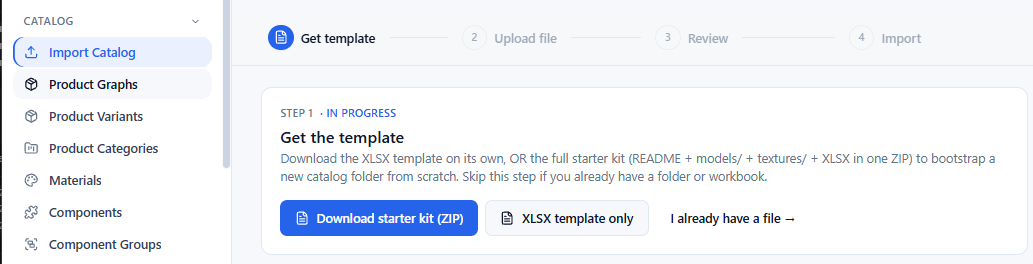
Catalog › Import Catalog. Get template gives you the columns; the sample bundles already follow them. Give it the folder, not the zip
Choose Select folder and pick the extracted
sectional-sofa-importorkitchen-importfolder, or drag it onto the picker. The wizard findscatalog.xlsxand resolves themodels/,materials/andthumbnails/paths relative to it.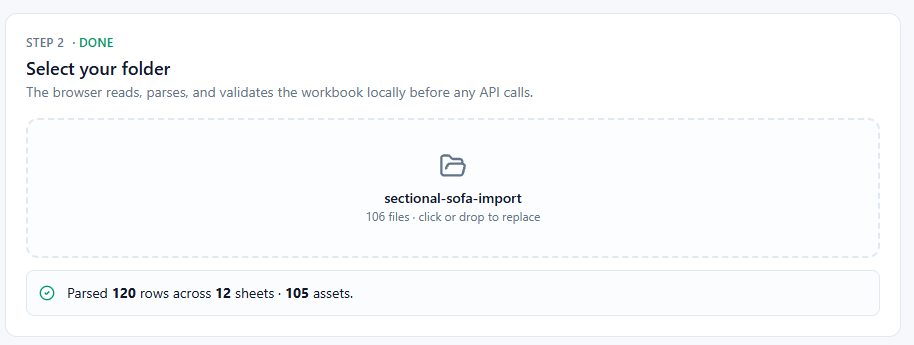
The extracted folder, not the zip. Review, then import
The importer first runs without writing anything and lists what would be created, skipped or in error. Errors block the import, warnings do not. Then run it. Rows are created in dependency order, materials before components before products, and you get a count of what was created at the end.
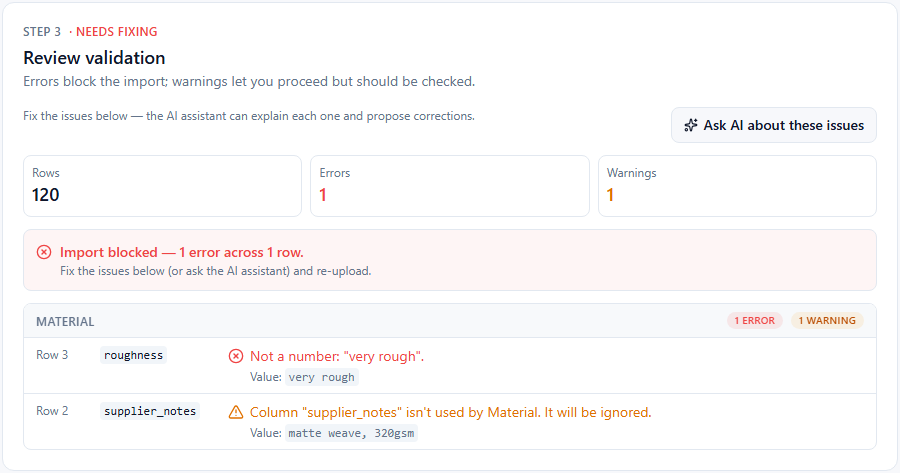
Review: the dry run, before anything is written. 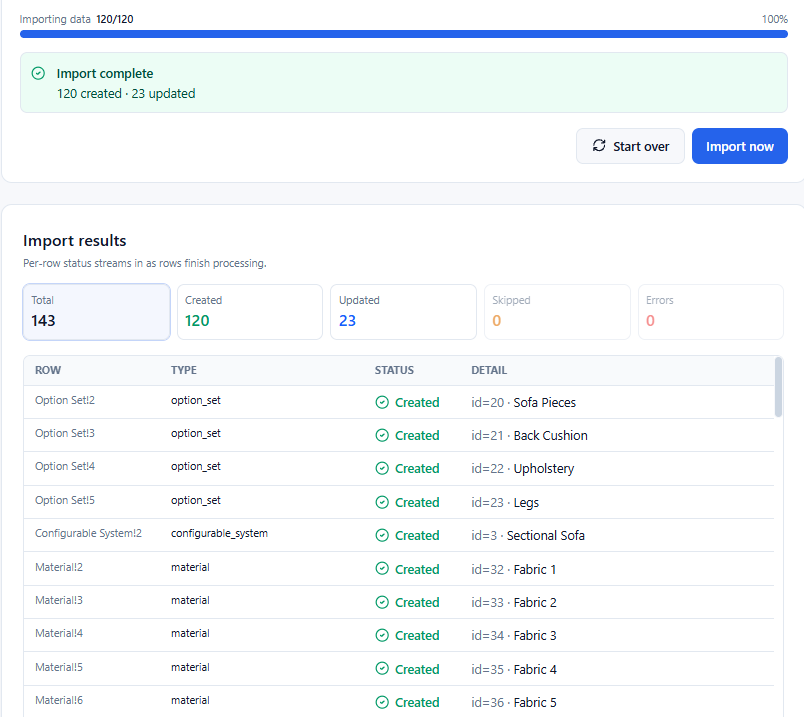
Done: what was created, updated and skipped. Publish the layout
The step everyone misses. The importer stops at a draft, exactly as the dashboard does, and it does not hand you a link to what it just created. Go to Scenes › Configurable Systems, open the system the import created (Sectional Sofa or Kitchen, the names come from
catalog.xlsx), then Layouts › Publish. Until you do, the configurator mounts into an empty scene with no error, because nothing failed.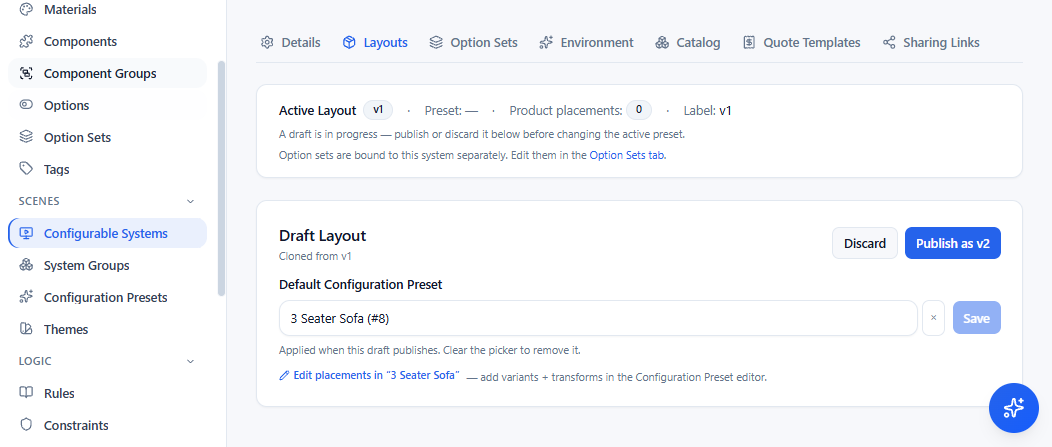
Layouts › Publish. The system id is the number at the end of the address bar; the SDK quickstart needs it.
What lands in your catalog
The counts come from catalog.xlsx itself, one sheet per thing. For the sofa:
| Sheet | Rows | What it creates |
|---|---|---|
| Component Group | 3 | Legs, Back Cushion, Arm Style |
| Option Set | 4 | Sofa Pieces, Back Cushion, Upholstery, Legs |
| System Option Set | 4 | Each of those four bound to the system |
| Material | 12 | Upholstery fabrics and leg finishes, each with its texture folder |
| Component | 33 | Pieces, arms, legs and cushions, one per GLB |
| Option | 33 | The choices inside the four option sets |
| Product Graph | 1 | Sofa |
| Product Variant | 12 | One variant per sofa piece |
| Configuration Preset | 3 | 3 Seater Sofa, L Shaped Sectional, U Shaped Sectional |
| Configurable System | 1 | Sectional Sofa |
| Rule | 1 | Exclude cushions from the bounding box used for placement |
| Constraint | 5 | At most one left-facing and one right-facing piece per scene; where the two ottomans may go |
The kitchen workbook has the same sheets plus Anchor Point (641 rows), Product Option Set (29), Tag (9) and Product Category (2): 12 products (base, wall and tall cabinets, island, sink, range, oven, dishwasher and more), 75 variants, 325 components in 64 component groups, 15 option sets, 128 options, 15 materials, 4 presets (L shaped, U shaped, galley, single wall), 77 rules and 20 constraints such as a range hood that must sit above a stove and tall cabinets that rest on the floor.
Licence
The models, textures, thumbnails and anything rendered from them are licensed for non-commercial use only, permanently. A paid plan does not change that. They are sample data for learning and evaluation, not stock you have bought: not for a customer-facing configurator, a sales demo or marketing material. Replace them with assets you own before anything goes live. Full terms: sample asset licence.
Frequently asked questions
Are the sample catalogs free?
Yes, to download and import, on any plan. The models, textures and anything rendered from them are licensed for non-commercial use only, permanently: a paid plan does not change that. Replace them with assets you own before anything goes live.
Do I upload the zip or the folder?
The extracted folder. Each zip wraps a folder, so catalog.xlsx is not at the archive root and the importer cannot read the zip as-is. Choose Select folder in the importer and pick the extracted sectional-sofa-import or kitchen-import folder, or drag it onto the picker.
Why is the configurator empty after a successful import?
The layout was not published. The importer stops at a draft, as the dashboard does. Open the system it created under Scenes › Configurable Systems, then Layouts › Publish. Until then the configurator mounts into an empty scene with no error, because nothing failed.
Which one should I pick?
The sofa is the smaller download and the simpler catalog: one product, 12 variants, 4 option sets, 5 constraints and 1 rule, enough to see options, placement limits and presets in action. The kitchen is the full-size example: 12 products, 325 components, 77 rules, 20 constraints and 641 anchor points for placement.
Can I edit the imported catalog?
Yes. Everything the import created is ordinary catalog data in your organisation: change prices, add materials, rules or presets, or use the workbook as the template for your own catalog.